
Nov
Dealing with Windows Server slow performance can severely disrupt your daily business operations. Therefore, IT teams need a reliable way to find the root cause quickly.
Quick Summary
Windows Server slow performance usually stems from one of four bottlenecks:
- CPU saturation
- Memory exhaustion
- Disk latency
- Network congestion
Specifically, you should check CPU, RAM, storage, and network metrics in that exact order. By doing so, you will avoid making unnecessary configuration changes.
How to Diagnose Windows Server Slow Performance
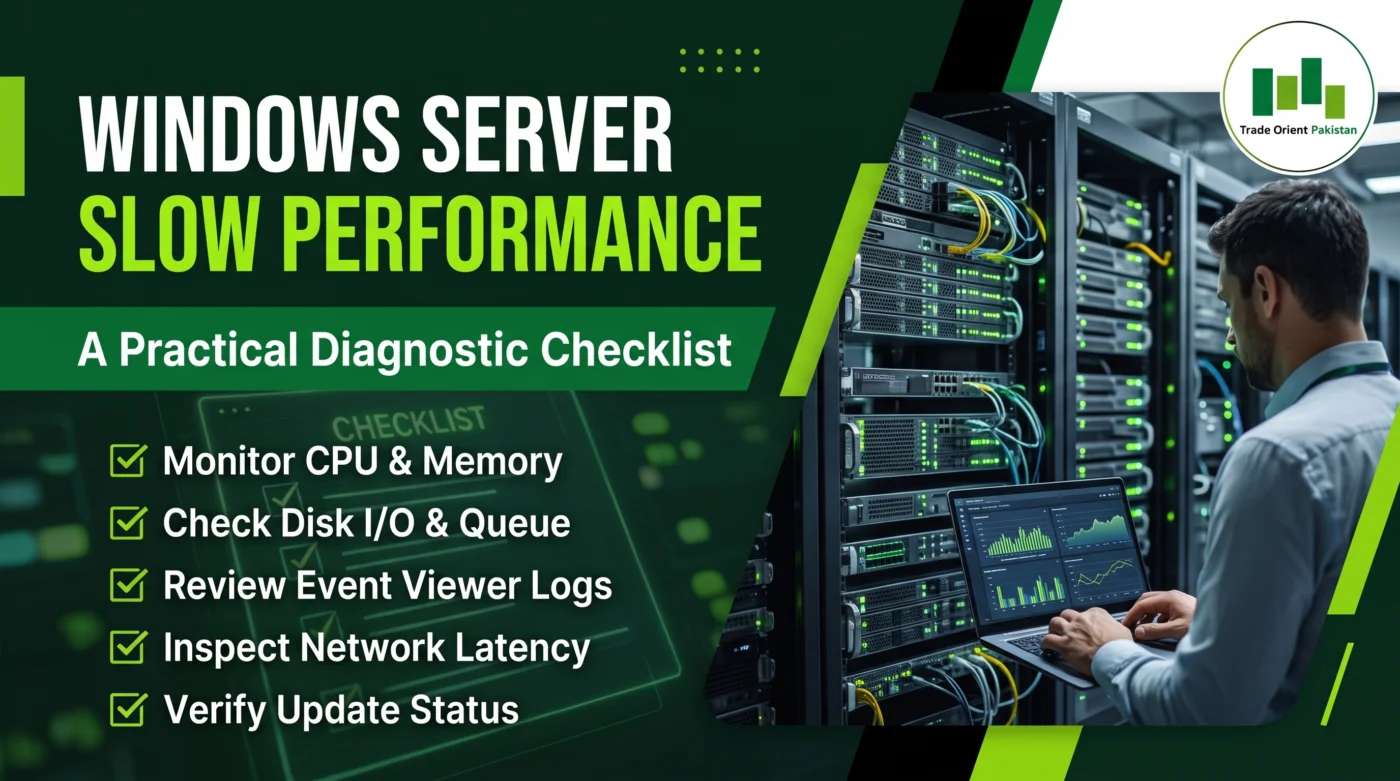
Initially, you must isolate the bottleneck across four core subsystems. First, check your CPU load. Subsequently, inspect the system for memory exhaustion. After that, measure your storage disk latency. Finally, verify your overall network throughput.
To begin, triage active processes using Resource Monitor. Moreover, measure physical disk queueing inside Performance Monitor (perfmon). In addition, verify your hardware RAID write-cache status. Crucially, always check thermal clock throttling before making any changes. Furthermore, if you need deeper system insights, you can utilize official Microsoft Sysinternals tools.
Production Server Freezing or Timing Out?
Generally, unmanaged reboots risk corrupting active SQL transactions. Furthermore, they can damage ERP database records. Fortunately, if your organization is experiencing critical server latency, we can help immediately. For instance, our certified enterprise engineers run remote health audits. Alternatively, we provide on-site hardware triage.
➔ Contact Trade Orient Pakistan for Support | Direct WhatsApp Technical Desk: https://wa.me/923008251542
Why Server Performance Matters in Pakistan
Undoubtedly, IT teams in Karachi, Lahore, and Islamabad face unique environmental challenges. Specifically, these conditions differ greatly from overseas cloud data centers. Typically, production workloads run on local Dell PowerEdge and HPE ProLiant server racks.
Consequently, these local deployments face distinct operational hurdles:
- Frequent Power Phase Shifts: Often, power shifts happen frequently between grid electricity and backup generators. As a result, this introduces electrical noise and cooling interruptions. Meanwhile, ambient server room temperatures spike rapidly. Because of this, processors throttle down clock speeds to prevent hardware damage. Ultimately, this safety feature mimics an operating system freeze.
- Extended Hardware Depreciation: Historically, enterprise servers in Pakistan run well beyond standard replacement cycles. Additionally, older SAS arrays and degraded RAID cache batteries struggle with modern workloads. Therefore, running heavy virtualization pools depletes available IOPS quickly.
- High Cost of Accidental Downtime: Unfortunately, junior administrators often panic during peak business hours. Frequently, they force a hard system reboot. However, cutting power mid-write corrupts database transaction logs. Thus, a short delay turns into days of costly data recovery.
Overall, a structured diagnostic checklist replaces guesswork with clear telemetry analysis.
Diagnostic Prerequisites and Baseline Telemetry
Always establish an administrative baseline before changing system parameters.
Diagnostic Prerequisites
- Out-of-Band Management: Ideally, log in through your server’s dedicated management interface (Dell iDRAC or HPE iLO). Alternatively, open a Remote Desktop session using the
mstsc /admincommand. By doing this, you bypass terminal server session stalls effectively. - Backup Verification: Next, confirm that full image-level backups completed successfully. In addition, verify your Volume Shadow Copy (VSS) snapshots.
- Change Control Log: Lastly, record every baseline metric in a text file. Indeed, this guarantees a clean rollback path later.
Essential Performance Terminology
- Processor Queue Length: Fundamentally, this metric counts the threads waiting for CPU time. Accordingly, sustained values above twice your physical core count indicate compute starvation.
- Disk Latency: Basically, this measures the average time taken to complete an I/O request. Indeed, latency is the true indicator of disk bottlenecks. Conversely, transfer speed (MB/s) can be highly misleading.
- Committed Bytes: Essentially, this represents the total virtual memory allocated by all software. Furthermore, the physical RAM and the paging file back this allocation.
- Non-Paged Pool: Specifically, the system allocates this memory to the Windows kernel. Crucially, it cannot be paged to disk. Therefore, a climbing non-paged pool points directly to a memory leak.
Safe, Ordered Diagnostic Workflow
Ideally, troubleshoot server performance from the most common constraints outward. As a result, you avoid circular investigations entirely.
Step 1: Processor Health
(Inspect CPU utilization, thermal clock throttling, and Interrupts / DPCs)
↓
Step 2: Memory Analysis
(Verify Available MBytes, paging rates, and Non-Paged Pool tags)
↓
Step 3: Storage Diagnostics
(Measure Avg. Disk sec/Write & Read, and verify RAID write-cache status)
↓
Step 4: Network Analysis
(Audit interface queues, SQL/VHDX antivirus exclusions, Event IDs)
↓
Step 5: Controlled Remediation
(Apply ONE isolated change, monitor 30 mins, and execute rollback if needed)
Step 1: Processor Load and Thermal Throttling
- First, open Task Manager and check the Performance tab.
- Then, review the current CPU Speed. If your processor is pinned at 0.79 GHz, the host is thermally throttling. Typically, this means a fan failure or server room AC outage has occurred.
- Next, open Resource Monitor and navigate to the CPU tab. Whenever
System Interruptsstay above 15%, suspect a failing physical hardware component.
Step 2: Memory Starvation and Driver Pool Leaks
- To start, open Performance Monitor and add the
Memory\Available MBytescounter. Whenever free memory drops below 10%, Windows forces active processes into disk paging. - Subsequently, track
Memory\Pages/sec. Clearly, sustained spikes above 100 indicate the host is thrashing memory against your storage array. - Finally, inspect Memory Pool Nonpaged. If this metric exceeds 8 GB on a 64 GB host, a driver is likely failing to release allocations.
Step 3: Storage Latency and Controller Bottlenecks
Unquestionably, storage constraints cause the majority of unresponsive application interfaces.
- First, add the following counters in Performance Monitor:
Avg. Disk sec/Read,Avg. Disk sec/Write, andCurrent Disk Queue Length. - Afterward, evaluate Disk Response Latency:
- Under 10 ms: Generally, this is optimal operational latency.
- 10 ms to 20 ms: Meanwhile, this is acceptable for spinning SAS arrays.
- Above 25 ms: Obviously, this is a critical bottleneck. Consequently, threads waiting on disk responses will freeze completely.
- Lastly, inspect the RAID controller health through Dell OpenManage or HPE iLO. Whenever the controller cache battery fails, it disables Write-Back caching automatically. As a precaution, this safety switch drops performance to Write-Through mode. Ultimately, this cuts write throughput by up to 90%.
Mid-Article Storage Checkpoint: Is Your Storage Array Bottlenecked?
If your disk latency counters exceed 25 ms, operating system adjustments will not fix the issue. Usually, the root cause is a degraded cache battery or failing SAS drives.
Fortunately, Trade Orient Pakistan supplies certified enterprise SAS/SATA drives and NVMe storage tiers. Furthermore, we carry RAID controller batteries for quick local replacement.
Step 4: Network Contention and Event Logs
- Initially, under the Network tab in Resource Monitor, check total adapter throughput. Specifically, confirm whether an unthrottled backup is saturating the network link.
- Next, audit your endpoint protection scanning rules. Undoubtedly, antivirus engines scanning active SQL database files create severe I/O bottlenecks.
- Finally, open Event Viewer and filter the System log. Specifically, look for Event IDs 9, 129, and 153. Clearly, these events signify an unresponsive physical disk drive.
Step 5: Controlled Change Implementation
- Importantly, apply only one change per maintenance window.
- Then, monitor production metrics for at least 30 minutes under live user load.
- Lastly, if performance metrics fail to improve, revert the modified parameter immediately.
Diagnostic Thresholds and Practical Action Matrix
Conveniently, use this reference table to evaluate telemetry data from your servers:
Common Troubleshooting Mistakes
Oftentimes, when production servers slow down, operational pressure leads to hasty decisions. Therefore, please avoid these critical mistakes:
- Triggering Unplanned Hard Reboots: Specifically, forcibly cutting server power risks partial transactions and NTFS corruption. Instead, always attempt a graceful OS shutdown first.
- Making Multiple Changes Simultaneously: For example, changing registry keys and updating drivers together causes diagnostic confusion. Consequently, it becomes impossible to determine what actually fixed the issue.
- Leaving Default Power Plans: Typically, the default balanced power profile allows the OS to throttle CPU frequencies. Conversely, production servers must always run on the High Performance power plan.
- Assuming Hardware is Obsolete: Surprisingly, sluggishness is rarely caused by obsolete processors. In reality, you can solve most performance problems simply by correcting RAID write-cache policies.
Related Infrastructure Resources
- ✅ RAID Levels Explained for Enterprise Servers
- ✅ Comprehensive IT Maintenance Guide for Pakistan
- ✅ Official Microsoft Performance Tuning Guidelines
Key Takeaways
- Diagnose CPU first: Initially, check total utilization and confirm the current clock speed.
- Then check RAM: Next, monitor Available MBytes and identify non-paged pool leaks.
- Measure disk latency: Moreover, focus on latency rather than MB/s transfer rates.
- Verify RAID cache battery: Additionally, ensure expired batteries have not disabled write caching.
- Review Event Viewer: Furthermore, filter system logs for storage resets and timeouts.
- Apply one change at a time: Crucially, isolate individual configuration adjustments safely.
- Validate for 30 minutes: Consequently, monitor live production telemetry carefully.
- Roll back if necessary: Finally, revert the change if metrics do not immediately improve.
Frequently Asked Questions (FAQ)
How do you fix Windows Server slow performance initially?
First, check CPU clock speeds and overall processor utilization. Following this, check storage latency counters in Performance Monitor immediately. Together, these metrics determine whether the host is processor-starved, thermally throttled, or waiting on disks. For instance, a CPU locked at 0.79 GHz requires immediate thermal cooling remediation.
Why is RDP slow on Windows Server?
Typically, network latency, dropped TCP packets, or severe disk queueing cause slow Remote Desktop sessions. Therefore, check Avg. Disk sec/Read in Performance Monitor to ensure the host isn’t starving the session. While disabling Bitmap Caching can mask the issue temporarily, underlying network drops are usually the root cause.
Can antivirus slow Windows Server?
Yes, endpoint anti-virus software scanning active database files will severely bottleneck your disk IOPS. Consequently, real-time scanning engines must use explicit folder exclusions for SQL Server (.mdf/.ldf) and Hyper-V (.vhdx). Without these exclusions, latency spikes can easily exceed 50 ms.
What causes Event ID 129?
Generally, Event ID 129 indicates the Windows storage driver timed out while waiting for an I/O response. Consequently, this critical hardware warning signals that the RAID controller or SAS drives are stalling. Furthermore, it frequently precedes a complete storage volume drop. Therefore, if you see this warning, contact our team for a hardware audit.
When should RAID batteries be replaced?
Ideally, enterprise RAID controller cache batteries should be proactively replaced every 3 to 4 years. Whenever this battery fails, controllers automatically disable Write-Back caching to prevent data loss. Instantly, this safety measure causes write speeds to plummet by up to 90%.
Author:
Trade Orient Pakistan Infrastructure Team
Specialists in Windows Server, Active Directory, SQL Server, Dell PowerEdge, HPE ProLiant, Storage Systems and Enterprise Infrastructure Support.
Need Expert Windows Server Support in Pakistan?
Whether you are experiencing:
- Slow Windows Server workloads
- SQL Server latency issues
- Active Directory sync failures
- RAID controller degradation
- Storage latency bottlenecks
- Hardware warning alerts
Trade Orient Pakistan provides:
- Remote troubleshooting
- On-site diagnostics
- Preventive maintenance
- Hardware replacement
- SLA support agreements
WhatsApp Support: Message Us on WhatsApp https://wa.me/923008251542
Request a Server Assessment: https://tradeorientpk.com
